Working with CDC in SQL server

How do you read all the changes captured by CDC in a table?

USE AdventureWorks2022; 
GO 
DECLARE @from_lsn binary(10), @to_lsn binary(10); 
SET @from_lsn = sys.fn_cdc_get_min_lsn('HR_Department'); 
SET @to_lsn = sys.fn_cdc_get_max_lsn(); 
SELECT * FROM cdc.fn_cdc_get_all_changes_HR_Department (@from_lsn, @to_lsn, N'all'); 
GO

How do you read the net changes captured by CDC in a table?

USE AdventureWorks2022;  
GO  
DECLARE @begin_time datetime, @end_time datetime, @from_lsn binary(10), @to_lsn binary(10);  
-- Obtain the beginning of the time interval.  
SET @begin_time = DATEADD(day, -1, GETDATE()) ;  
-- DML statements to produce changes in the HumanResources.Department table.  
INSERT INTO HumanResources.Department (Name, GroupName)  
VALUES (N'MyDept', N'MyNewGroup');  
  
UPDATE HumanResources.Department  
SET GroupName = N'Resource Control'  
WHERE GroupName = N'Inventory Management';  
  
DELETE FROM HumanResources.Department  
WHERE Name = N'MyDept';  
  
-- Obtain the end of the time interval.  
SET @end_time = GETDATE();  
-- Map the time interval to a change data capture query range.  
SET @from_lsn = sys.fn_cdc_map_time_to_lsn('smallest greater than or equal', @begin_time);  
SET @from_lsn = ISNULL(sys.fn_cdc_map_time_to_lsn('smallest greater than or equal', @begin_time), [sys].[fn_cdc_get_min_lsn]('HR_Department') );
SET @to_lsn = sys.fn_cdc_map_time_to_lsn('largest less than or equal', @end_time);  
  
-- Return the net changes occurring within the query window.  
SELECT * FROM cdc.fn_cdc_get_net_changes_HR_Department(@from_lsn, @to_lsn, 'all');

source: cdc.fn_cdc_get_net_changes_<capture_instance> (Transact-SQL) – SQL Server | Microsoft Learn
List the schema owner in Redshift

select s.nspname as table_schema,
       s.oid as schema_id,
       u.usename as owner
from pg_catalog.pg_namespace s
join pg_catalog.pg_user u on u.usesysid = s.nspowner
where nspname not in ('information_schema', 'pg_catalog', 'public')
      and nspname not like 'pg_toast%'
      and nspname not like 'pg_temp_%'
order by table_schema;

MySQL replication types

MySQL supports two (or three, depending on how you look at it) different methods of replicating databases from master to slave. All of these methods use the binary log; however, they differ in the type of data that is written to the master’s binary log.

  • Statement-based replication Under this method, the binary log stores the SQL statements used to change databases on the master server. The slave reads this data and reexecutes these SQL statements to produce a copy of the master database. This is the default replication method in MySQL 5.1.11 and earlier and MySQL 5.1.29 onwards.
  • Row-based replication Under this method, the binary log stores the record-level changes that occur to database tables on the master server. The slave reads this data and manipulates its records accordingly to produce a copy of the master database.
  • Mixed-format replication Under this method, the server can dynamically choose between statement-based replication and row-based replication, depending on certain conditions. Some of these conditions include using a user-defined function (UDF), using an INSERT command with the DELAYED clause, using temporary tables, or using a statement that uses system variables. This is the default replication method in MySQL 5.1.12 to MySQL 5.1.28.

If you’re unsure which replication method to use and your replication needs aren’t complex, it’s best to stick to statement-based replication, as it’s been around longest and therefore has had the most time to have its kinks worked out. That said, certain types of statements cannot be replicated using this method, and it also tends to require a higher number of table locks. Row-based replication is useful for these situations. Because it replicates changes to rows, any change can be replicated, and it also requires fewer table locks.

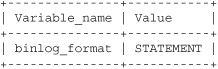
The replication method currently in use on the server is listed in the binlog_format server variable.

mysql> SHOW VARIABLES LIKE 'binlog_format';
t0305-01
1 row in set (0.08 sec)

To alter the replication method, set a new value for this variable, as shown, using the SET command with either GLOBAL or SESSION scope. Note that using GLOBAL scope requires a server restart for the change in method to take effect.

mysql> SET binlog_format = 'MIXED';
Query OK, 0 rows affected (0.02 sec)
mysql> SELECT @@SESSION.binlog_format;
+-------------------------+
| @@SESSION.binlog_format |
+-------------------------+
| MIXED                   |
+-------------------------+
1 row in set (0.00 sec)

mysql> SET GLOBAL binlog_format = 'ROW';
Query OK, 0 rows affected (0.00 sec)
mysql> SELECT @@GLOBAL.binlog_format;;
+------------------------+
| @@GLOBAL.binlog_format |
+------------------------+
| ROW                    |
+------------------------+
1 row in set (0.00 sec)

Upload files and folder into Azure Blob Storage using Powershell

Recently, I have had to automate a process to generate csv files and upload them to a certain folder in Azure blob storage. Here is the powershell code that does just that. After some research online, I have put together couple of solutions into one that worked well for me.

In order for this to work, you will need to install Azure powershell module on your machine. This solution assumes you are authenticating using account name and storage account key

#Upload csv files to Azure Blob Storage
$ErrorActionPreference = "Stop"

$acct = "storage-account-name" #Storage Account Name
$key = "storage-account-key" #Storage Account Key
$ContainerName = "container-name" #Container Name
$containerdirectory = "subfolder path within the container"
$localfilepath = "local-file-directory"

#create a context for communicating with azure storage
$ctx = New-AzStorageContext -StorageAccountName $acct -StorageAccountKey $key -Protocol Https
$container = Get-AzStorageContainer -Name $ContainerName -Context $ctx

$container.CloudBlobContainer.Uri.AbsoluteUri

if ($container) {
#use Set-AzStorageBlobContent to upload file
    $filesToUpload = Get-Childitem -Path $localfilepath -Filter "*.csv" 

        ForEach ($x in $filesToUpload) { 
            $targetPath = $containerdirectory+($x.fullname.Substring($localfilepath.Length)).Replace("\", "/")

            Write-Verbose "Uploading $("\" + $x.fullname.Substring($localfilepath.Length)) to $($container.CloudBlobContainer.Uri.AbsoluteUri + "/" + $targetPath)"
            Set-AzStorageBlobContent -File $x.fullname -Container $container.Name -Blob $targetPath -Context $ctx -Force:$Force | Out-Null
            }
        }